Sliding Scale Tool
 A Sliding Scale Tool object shows a value within a given span. The scale of the span is specified by the object’s Span property. The position of the indicator is specified by the Position property. In Edit mode, you can assign a default value to this property. If the object is associated with a point, the default value is replaced in Run mode by the actual value of the point.
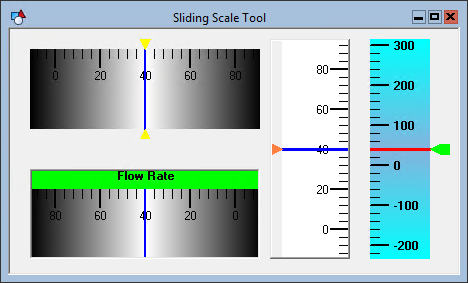
To associate the object with a point use the point identifier properties to form a fully qualified CygNet tag string. The point identifier properties are [1:SiteService], [2:Point ID], [3:Long Point ID], [4:Facility ID], and [5:UDC]. If the object is on a templated screen, only use the [5:UDC] property.
The orientation of the object can be horizontal or vertical. If you change the orientation you will also have to adjust the object’s boundary to match. The scale can go left-to-right, right-to-left, top-to-bottom, or bottom-to-top. The scale is reversed using the ReverseScale property. The number, length, precision, and color of the tick marks can be configured.
The [DisplayItem] property specifies what is shown in the "title" area. If set to Value, the value of the point is shown. If set to Text, the text specified by the Text property is shown.
The Text property of a Sliding Scale Tool object can contain both static and dynamic text. The dynamic portion of the string is built using tokens. See Using Text Tokens for more information about tokens and formatting token strings.
The color of the scale is set using the ScaleBackgroundColor, ScaleShadowColor, and ScaleShadowEnabled. ScaleBackgroundColor is the background color of the scale. ScaleShadowColor is the foreground color. If ScaleShadowEnabled is set to true, then the foreground (ScaleShadowColor) is a gradient. If false, only the ScaleBackgroundColor color is shown.
The [AlarmElement] property can be set to show the point state color in the object’s Background Color, the Pointer Color, the Pointer Line Color, the Scale Background Color, the Title Color, or not at all (None). When set to None, the color specified for each component is shown. If set to one of the other options, the component color is replaced with the point state color.
The [UseCustomStateColors] property enables the object to use its own custom point state colors. If set to 1 - Yes, the colors used are those defined by the object’s [CustomStateColors] property. If set to 0 - No, the colors are those defined by the TheView’s [CustomStateColors] property.
CygNet Studio also has the following similar tools:
| |

|
Slider object which is used to set a constant value.
|
| |

|
Slider Tool which is for UIS commands that require an analog value.
|
| |

|
Slider Switch Tool which is for multi-state (enumerated) command values.
|
More:
 Sliding Scale Tool - Properties, Events, and Methods
Sliding Scale Tool - ActiveX Properties

